Matplotlib visualization tips that make plots speak for
themselves
A picture is worth a thousand words. Good visualizations speak for
themselves saving the expensive stakeholders' time while presenting a
data project. Unfortunately, raw data exploration plots are not suitable
for sharing with audience no matter how good the visualization library
is. The visualizations require fine tuning to make them easy to navigate
for an untrained eye. Otherwise, a large chunk of the meeting is wasted
on explaining what is on the plot rather than talking about the
implications. Though tempting, such tradeoff can push a decision on a
critical project by weeks or months.
In this blog, I will share the pieces of code that make
visualizations easier to read and approaches for saving time while
putting the corresponding code together. The material is intended for
the Data Scientists who spend significant time exploring the data and
using the results to help stakeholders make business decisions.
The last mile problem
Python community owns a number of powerful visualization libraries.
Seaborn,
Plotly,
Altair,
Pygal, and
Plotnine are among the
many others. The libraries compete in how much insights they can cram in
one graph with a single plot command. This helps
tremendously in data exploration and discussing intermediate results
with fellow data scientists. However, the business stakeholders get
confused with the complexity of such elaborate visualizations especially
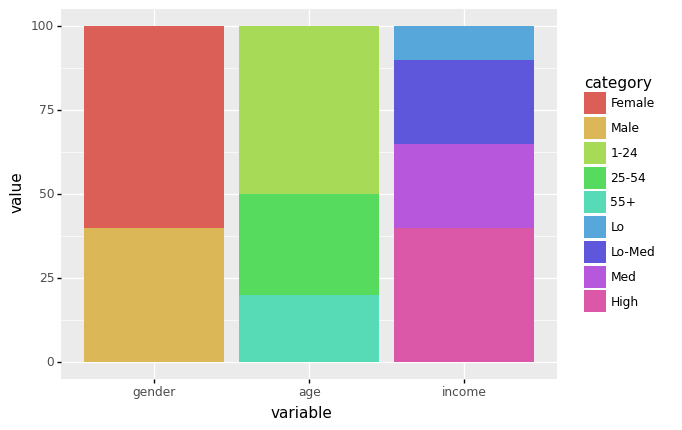
if presented in a raw form. They did not read the dataset documentation
to guess that cty on x axis is the fuel consumption in
the city, may not be aware of the average for the industry to compare it
with, or did not have a training about where to look at in a box plot.
It is on us to make the graphs easy to read. I data professional is
responsible for focusing stakeholders' attention on the things they want
to know. This last mile from a flashy picture to an informative graph
requires a significant effort.
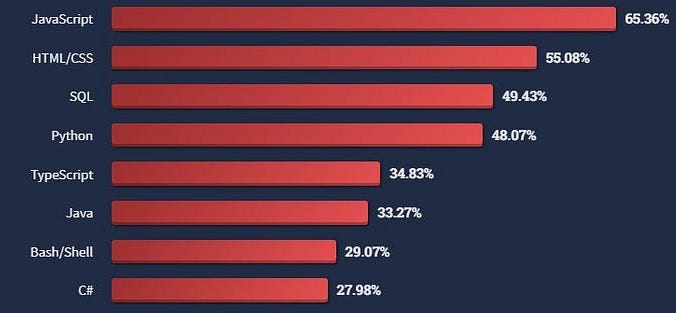
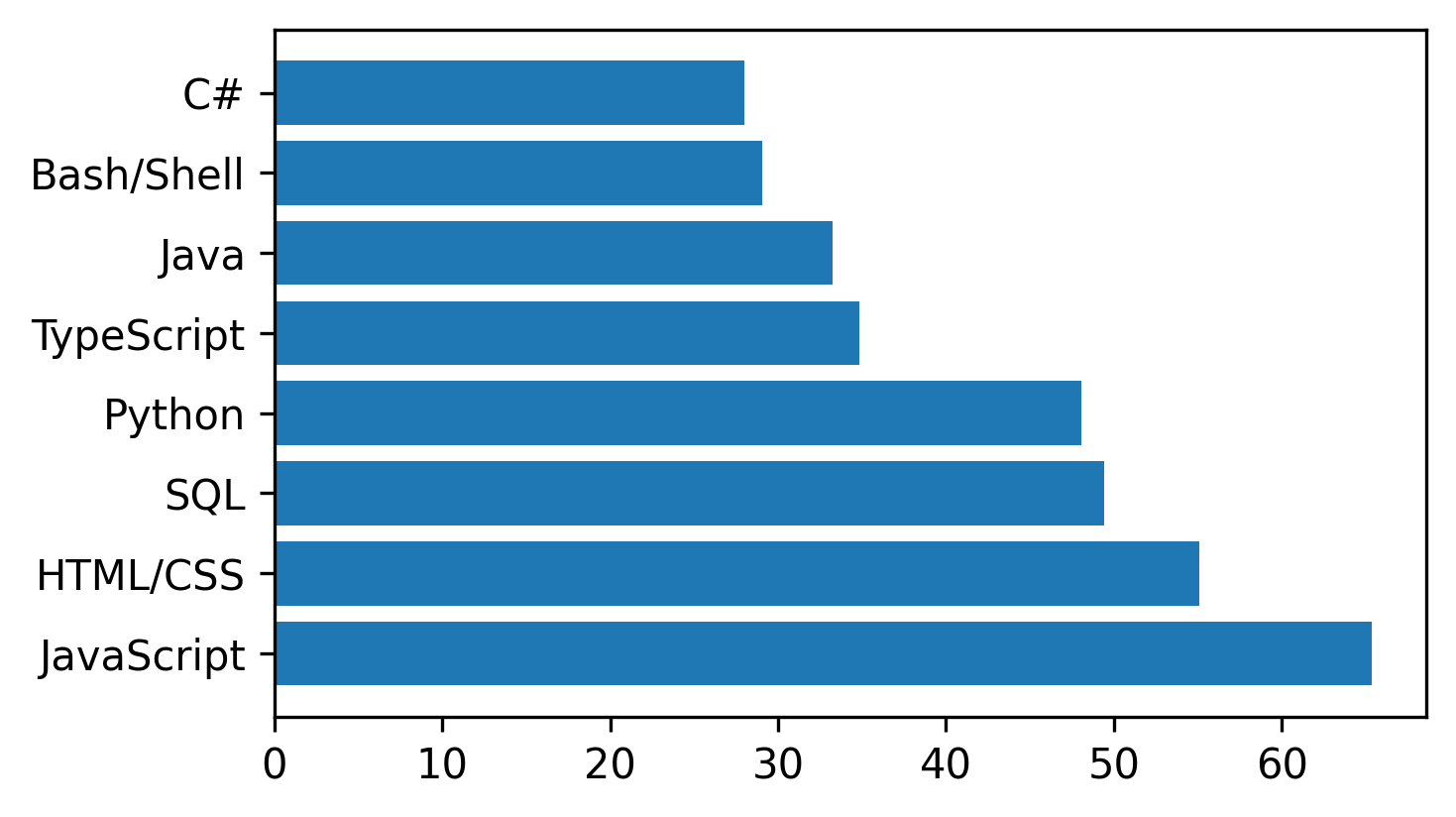
Let's say, I found a function from a new visualization library that
fits perfectly to my data and renders the following plot that I found in
this
article:
Looks slick, but I will have to spend time explaining what was
measured for each of the programming languages. Even after that, it is
unclear what message I want to get across and where to look for
justification. Each mental step that a stakeholder has to take while
reading the plot increases the chances of misinterpretation and the
overall confusion. Such simple steps as adding an x label or writing a
title do the job but get often omitted. Memorizing the corresponding
commands for each new library or googling the documentation every time
is not impossible but tedious. Instead, I want concentrate on the tricks
that cover the last mile using the standard matplotlib
library. There are two reasons for that:
- Inheritance.
Some visualization libraries like Seaborn use
matplotlib as
a backbone. This means that the generated image can then be finished off
in the same way as if it was generated with matplotlib
itself. - Sufficiency.
matplotlib provides
all the essential visualization functionality. The result might not be
as flashy or interactive but has all the means for bringing the point
across efficiently. For example, the above visualization can be
delivered with the standard library in the way shown below.
import matplotlib.pyplot as plt

programming_languages = ('JavaScript',
                         'HTML/CSS',
                         'SQL',
                         'Python',
                         'TypeScript',
                         'Java',
                         'Bash/Shell',
                         'C#')

past_year_use = (65.36, 55.08, 49.43, 48.07, 34.83, 33.27, 29.07, 27.98)

plt.barh(programming_languages, past_year_use)
plt.show()
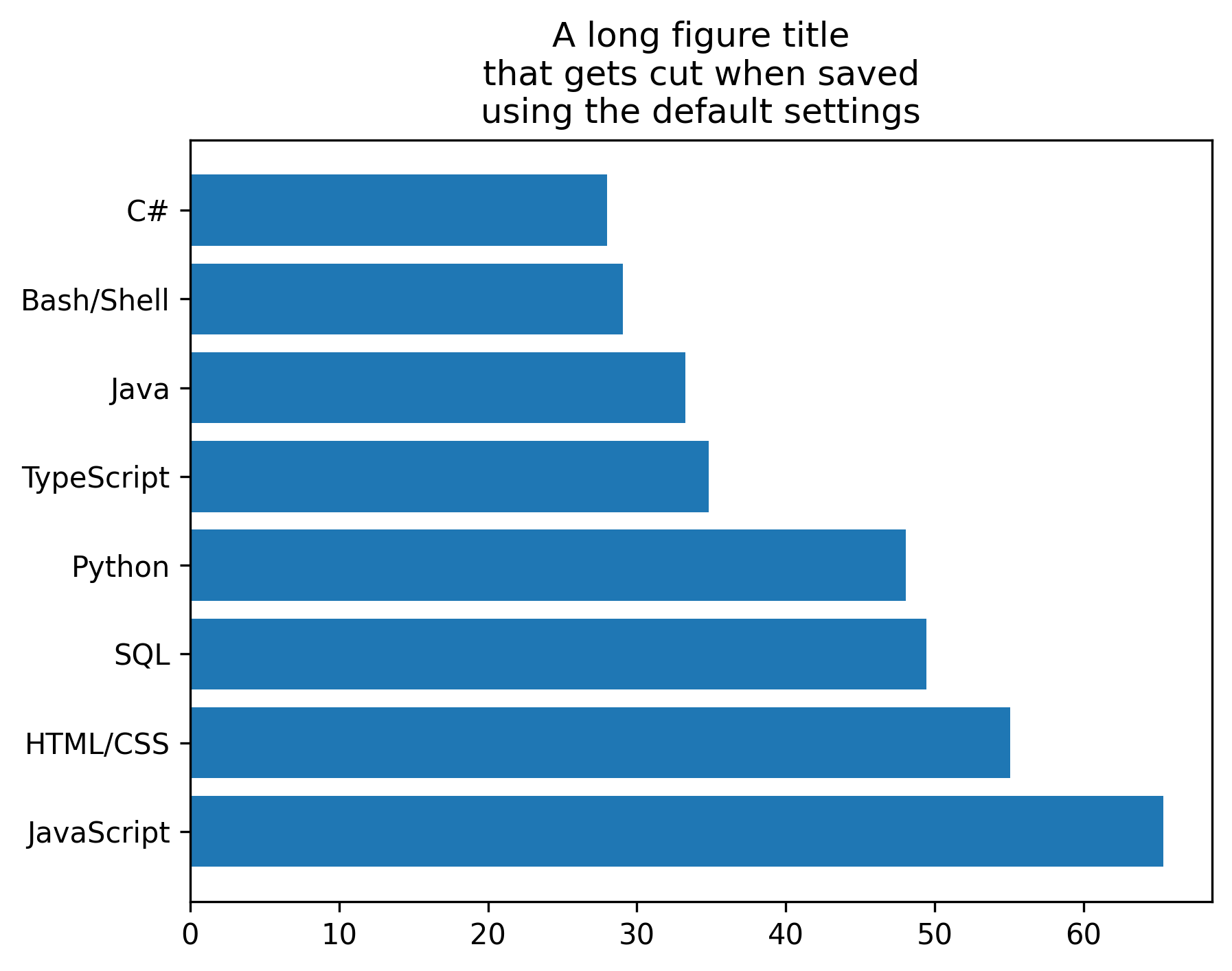
The bare bones plot with matplotlib contains exactly the
same information but looks even less intuitive then the original image.
The following section will cover the steps on how to make this plot easy
to read. The section after that will show ways of saving time on the
tuning process.
Making plots easier to read
Image saving options
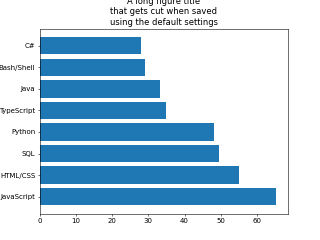
The resulting plot will only appear on slides or in documentation if
it was saved in a file. However, the default saving options need
adjustments more often than not. Default framing settings can cut parts
of the header out of image while the default resolution settings can
result in a pixelated outcome.
It is our responsibility to make sure the final result looks good on
the screen where it is presented. The bbox_inches='tight'
parameter makes every piece of the plot fit and cuts the excessive white
space. The dpi parameter controls the resolution.
Increasing the dpi value results in less blurry images in
expense of the increasing file size.
plt.savefig('pics/demo_bar_plot_save.png', bbox_inches='tight', dpi=300)
# plot preparation
fig = plt.figure(figsize = (5,3))  # set the figure size (Width, Height)
ax = plt.gca()  # get the axis from the plot
# plotting
handle_bars = plt.barh(programming_languages, past_year_use)  # the plot

plt.savefig('pics/demo_bar_plot_fs.png', bbox_inches='tight', dpi=300)
plt.show()
Title and axis labels
The plot should inform the viewer about its content. Most
visualization tutorials describe only the part of putting a graph
together while leaving the context dependent code up to the readers. The
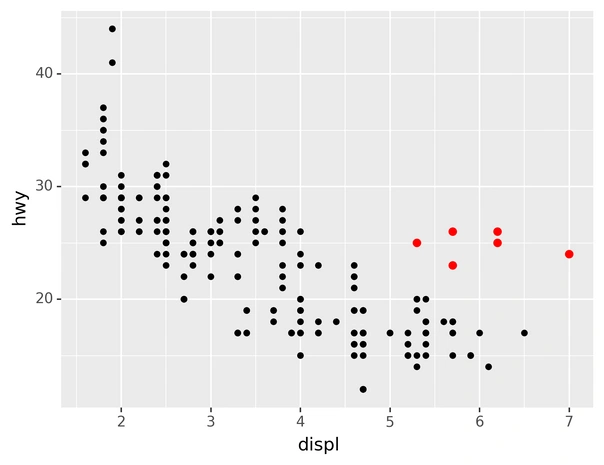
following example from
this tutorial does
its job demonstrating the library capability. However, it should never
appear on presentation slides in its raw form:
Even though
the plot hints to something by coloring some of the dots red, it takes a
mental effort to figure out what the axis are and why the red dots are
important. Title and labels are a straightforward way of delivering this
information. Assumptions about these details being obvious lead to
confusion, misinterpretations, unnecessary questions, and lengthy
explanations. A simple remedy would be to always label the axis and tell
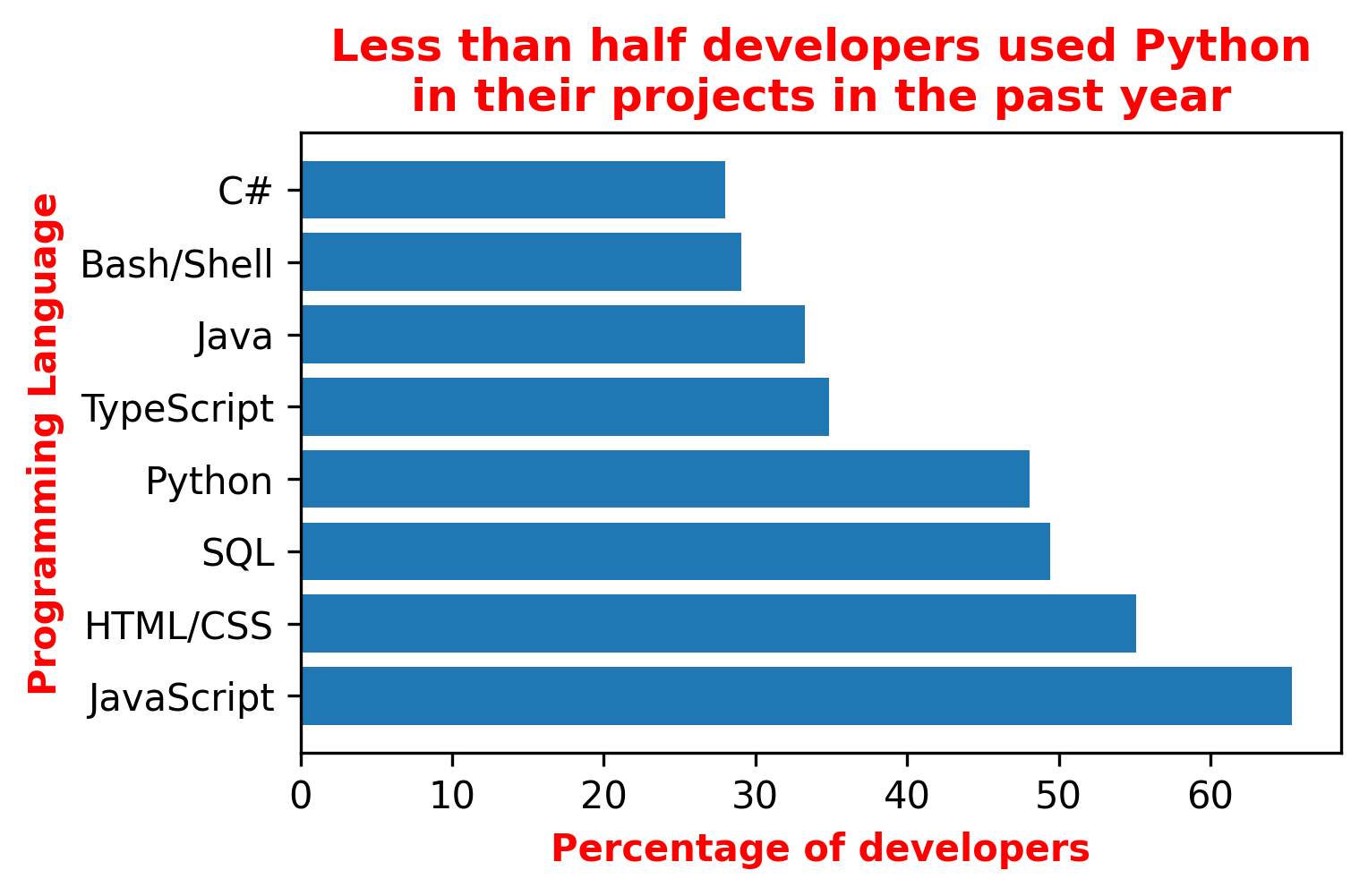
the readers the main takeaway of the plot in the title. Say, I want
bring across the point that, unlike my expectations, Python is not as
wide spread in developers' projects as some other programming languages.
Then I would set the title and the axis as follows:
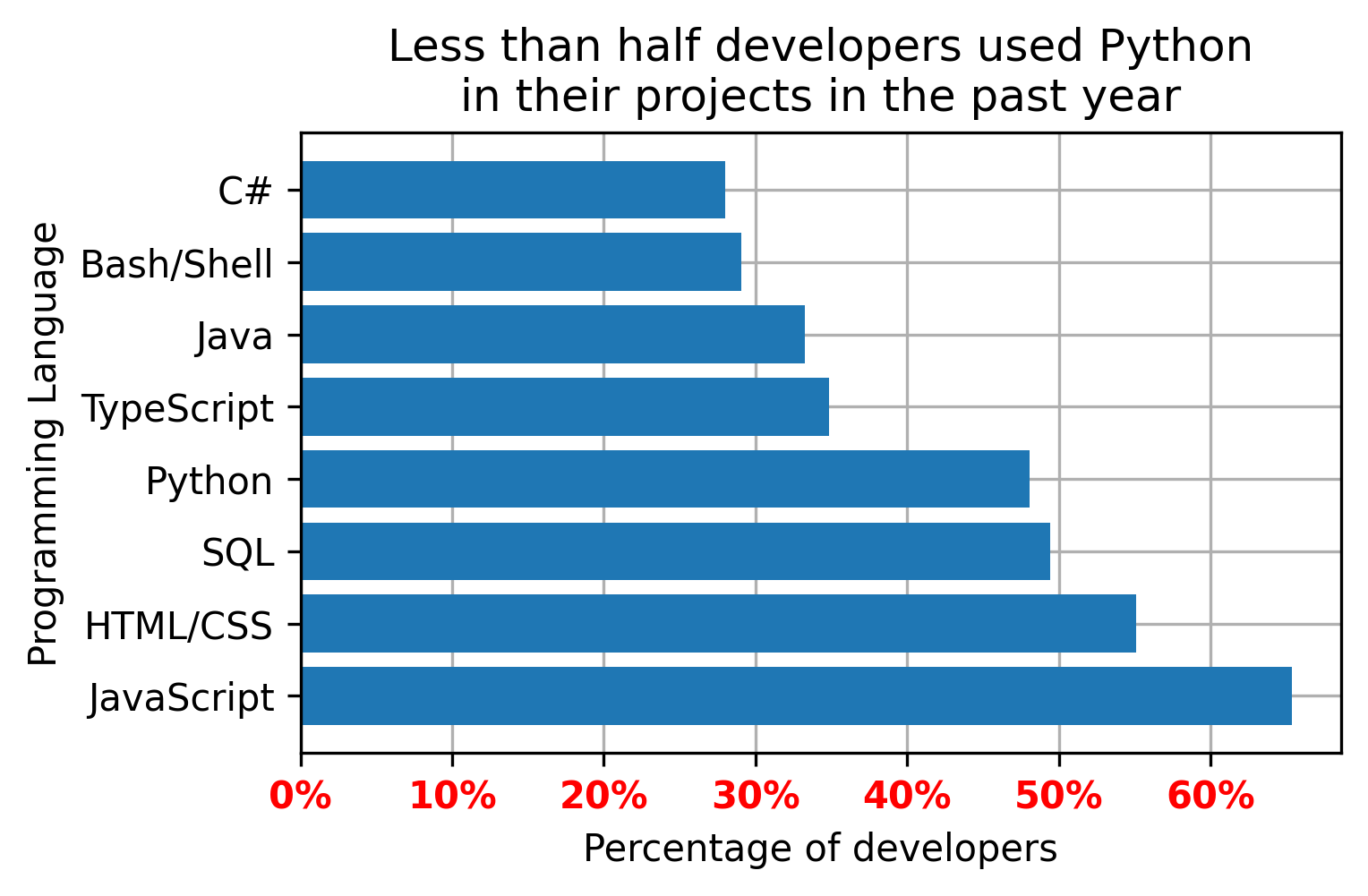
plt.title('Less than half developers used Python\n'
          'in their projects in the past year')
plt.xlabel('Percentage of developers')
plt.ylabel('Programming Language')
This will still force my reader to make an effort finding the Python
bar and comparing its length to the others but the focus is already
there.
# plot preparation
fig = plt.figure(figsize = (5,3))  # set the figure size (Width, Height)
ax = plt.gca()  # get the axis from the plot
# plotting
handle_bars = plt.barh(programming_languages, past_year_use)  # the plot
# fine tuning
highlighting = {'color':'red', 'fontweight':'bold'}
plt.title('Less than half developers used Python\n'
          'in their projects in the past year',
          **highlighting)
plt.xlabel('Percentage of developers', **highlighting)
plt.ylabel('Programming Language', **highlighting)

plt.savefig('pics/demo_bar_plot_ttl.png', bbox_inches='tight', dpi=300)
plt.show()
Grid lines
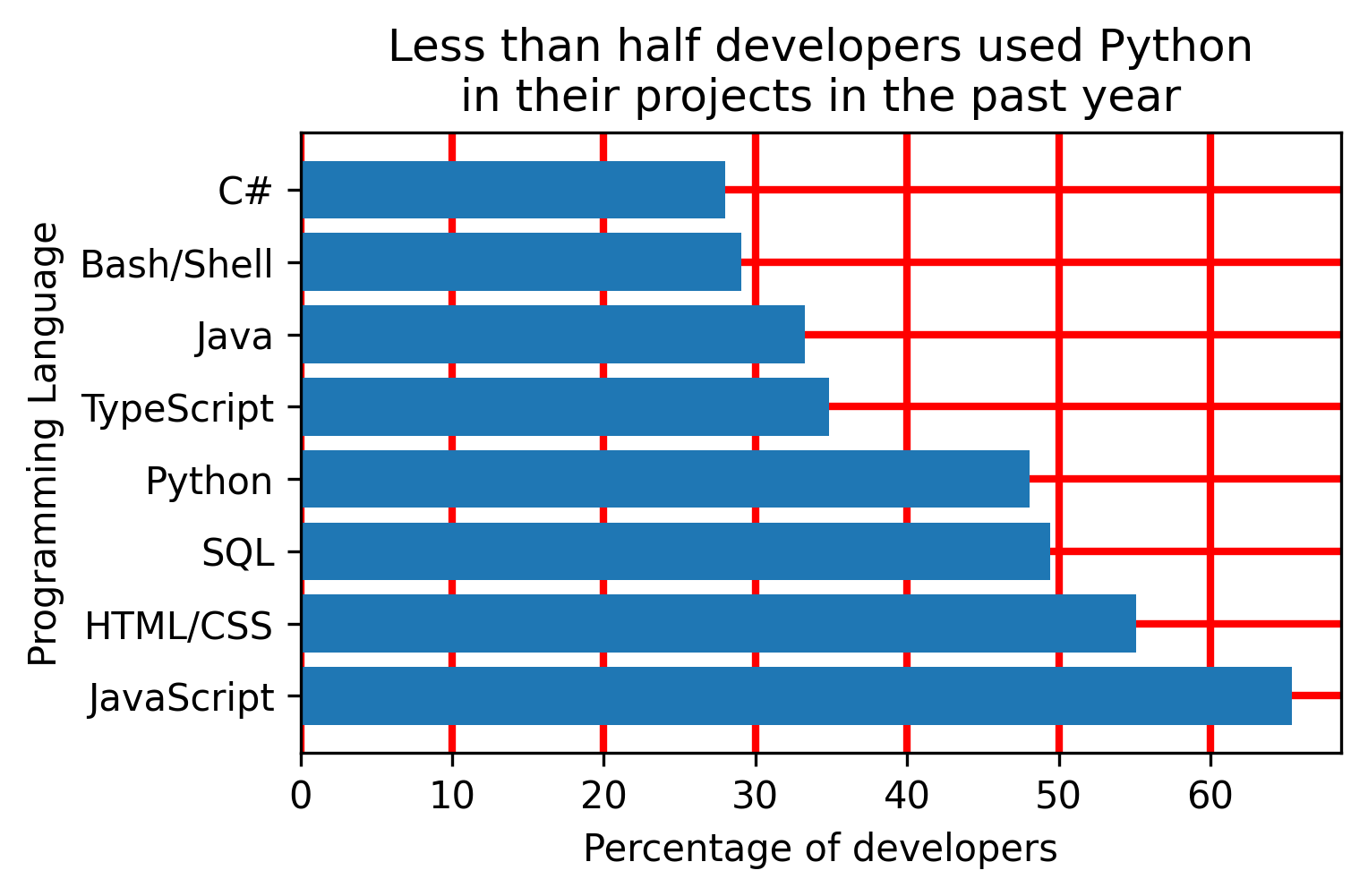
Grid lines help perceive the differences between the values on a
plot. The effect is similar to how the lines on the football field help
referees spot the differences between players' positions when calling
offsides.
The following command sets the grid:
plt.grid(True) # show the grid
However, the grid lines show up on the top of the bars by default.
And that looks ugly. The fix requires extracting the axis object from
the plot first before setting the grid below the bars:
ax = plt.gca()          # get the axis from the plot
ax.set_axisbelow(True)  # set grid lines to the background
# plot preparation
fig = plt.figure(figsize = (5,3))  # set the figure size (Width, Height)
ax = plt.gca()  # get the axis from the plot
# plotting
handle_bars = plt.barh(programming_languages, past_year_use)  # the plot
# fine tuning
plt.title('Less than half developers used Python\n'
          'in their projects in the past year')
plt.xlabel('Percentage of developers')
plt.ylabel('Programming Language')

plt.grid(color='red', linewidth=2)              # show the grid
ax.set_axisbelow(True)  # set grid lines to the background

plt.savefig('pics/demo_bar_plot_gl.png', bbox_inches='tight', dpi=300)
plt.show()
# plot preparation
fig = plt.figure(figsize = (5,3)) # set the figure size (Width, Height)
ax = plt.gca() # get the axis from the plot
# plotting
handle_bars = plt.barh(programming_languages, past_year_use) # the plot
# fine tuning
plt.title('Less than half developers used Python\n'
'in their projects in the past year')
plt.xlabel('Percentage of developers')
plt.ylabel('Programming Language')
plt.grid(True) # show the grid
ax.set_axisbelow(True) # set grid lines to the background
ax.set_xticklabels(ax.get_xticks(), color='red', weight='bold')
add_percentage = lambda value, tick_number: f"{value:.0f}%"       # function that adds % to tick value
ax.xaxis.set_major_formatter(plt.FuncFormatter(add_percentage))   # apply the tick modifier to x axis
plt.savefig('pics/demo_bar_plot_tl.png', bbox_inches='tight', dpi=300)
plt.show()
Reference points
Points of reference help navigate the audience around the
expectations like the sales goal, an industry standard, the end of
quarter, or something of high importance. Adding a reference point
explicitly saves efforts in making sense of the plot.
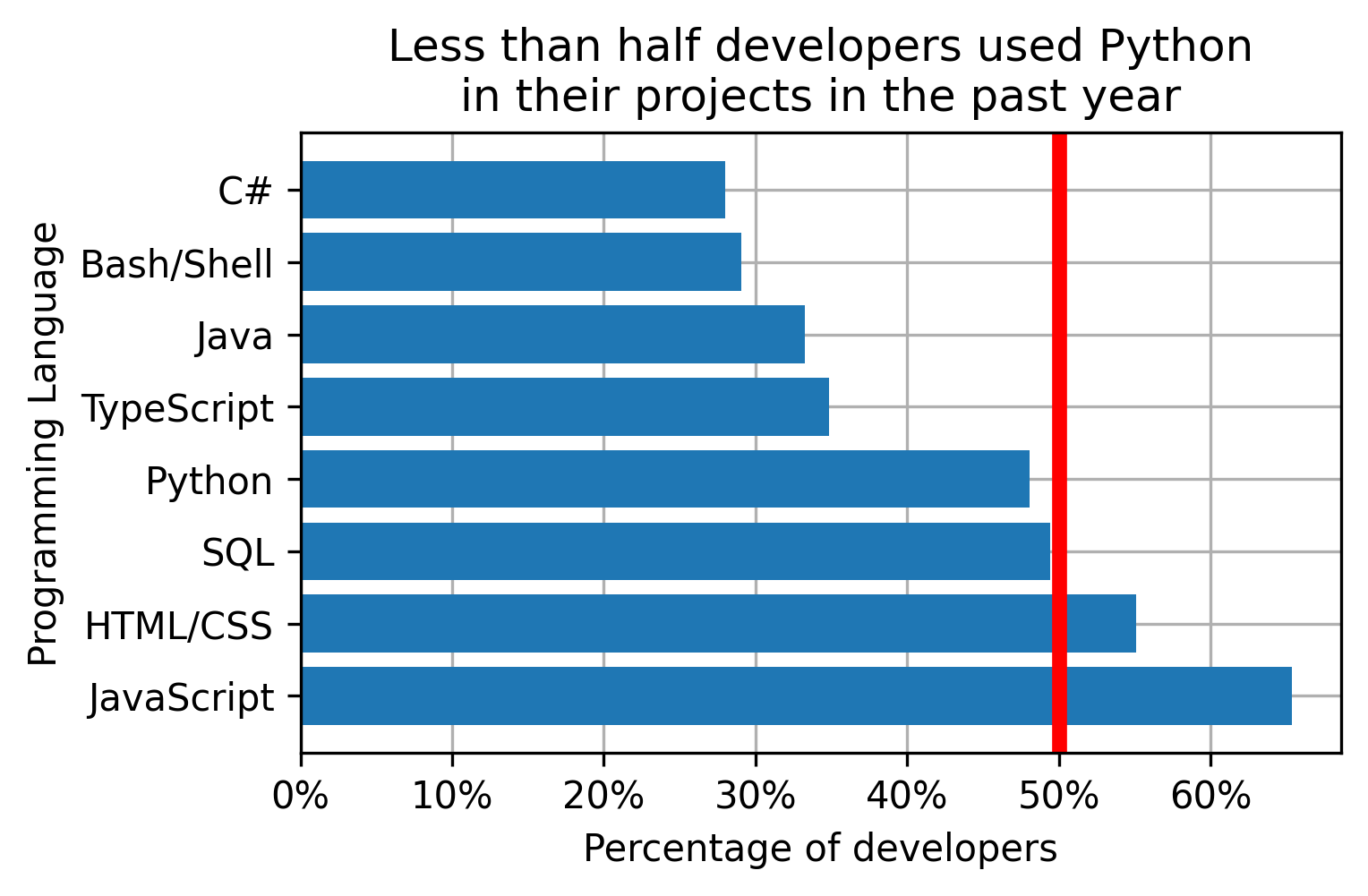
I added a vertical line at 50% of programmers who used a programming
language. This makes it easier to get an understanding of the graph and
to make the right conclusions without looking at the numbers (e.g. less
than 50% of the programmers use Python).
plt.axvline(50, color='m', ls='--') # 50% cutoff vertical line (axhline for horizontal)
# plot preparation
fig = plt.figure(figsize = (5,3))  # set the figure size (Width, Height)
ax = plt.gca()  # get the axis from the plot
# plotting
handle_bars = plt.barh(programming_languages, past_year_use)  # the plot
# fine tuning
plt.title('Less than half developers used Python\n'
          'in their projects in the past year')
plt.xlabel('Percentage of developers')
plt.ylabel('Programming Language')

plt.grid(True)          # show the grid
ax.set_axisbelow(True)  # set grid lines to the background

add_percentage = lambda value, tick_number: f"{value:.0f}%"       # function that adds % to tick value
ax.xaxis.set_major_formatter(plt.FuncFormatter(add_percentage))   # apply the tick modifier to x axis

plt.axvline(50, color='r', linewidth=4)  # 50% cutoff vertical line (axhline for horizontal)

plt.savefig('pics/demo_bar_plot_rp.png', bbox_inches='tight', dpi=300)
plt.show()
Legend
A legend names different layers of the plot. The default order of the
layers can be mixed up. In such cases individual layers can be
identified through the corresponding handles and added individually with
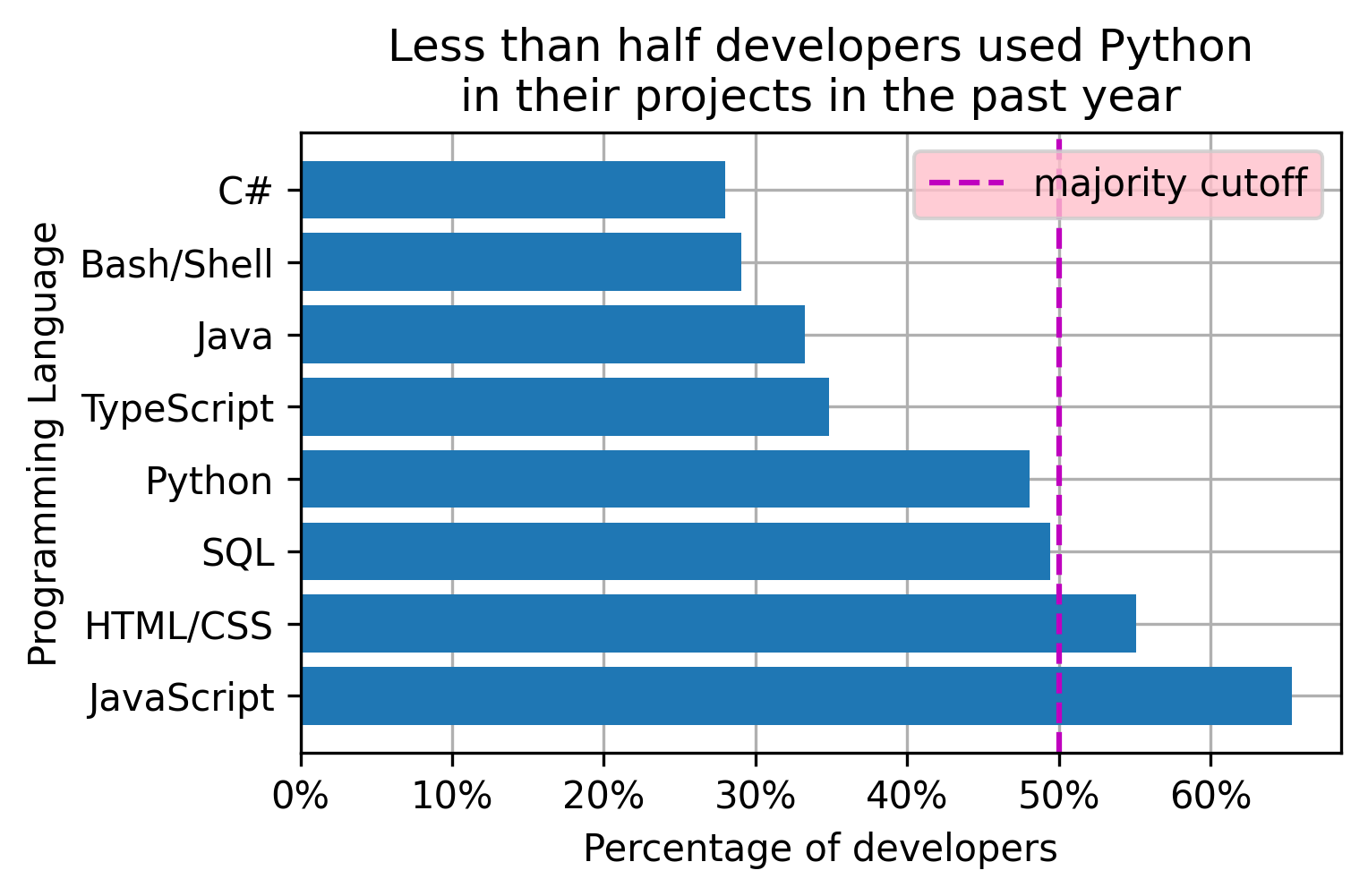
the corresponding names. In my example, the legend for the bars
themselves will not add value while taking space, but the reference line
should be annotated. The location argument helps positioning the legend
in a way that does not obstruct the areas of high importance.
handle_vline = plt.axvline(50, color='m', ls='--')  # 50% cutoff vertical line (axhline for horizontal)
plt.legend([handle_vline],                          # layers handles
           ['majority cutoff'],                     # layers names
           loc='upper right')                       # legend position
# plot preparation
fig = plt.figure(figsize = (5,3))  # set the figure size (Width, Height)
ax = plt.gca()  # get the axis from the plot
# plotting
handle_bars = plt.barh(programming_languages, past_year_use)  # the plot
# fine tuning
plt.title('Less than half developers used Python\n'
          'in their projects in the past year')
plt.xlabel('Percentage of developers')
plt.ylabel('Programming Language')

plt.grid(True)          # show the grid
ax.set_axisbelow(True)  # set grid lines to the background

add_percentage = lambda value, tick_number: f"{value:.0f}%"       # function that adds % to tick value
ax.xaxis.set_major_formatter(plt.FuncFormatter(add_percentage))   # apply the tick modifier to x axis

handle_vline = plt.axvline(50, color='m', ls='--')  # 50% cutoff vertical line (axhline for horizontal)
plt.legend([handle_vline],                          # layers handles
           ['majority cutoff'],                     # layers names
           loc='upper right',                       # legend position
           facecolor='pink')

plt.savefig('pics/demo_bar_plot_lgnd.png', bbox_inches='tight', dpi=300)
plt.show()
Plot specific manipulations
The above manipulations are applicable to the major plot types
including line plots, bar plots, box plots, etc. Plot specific
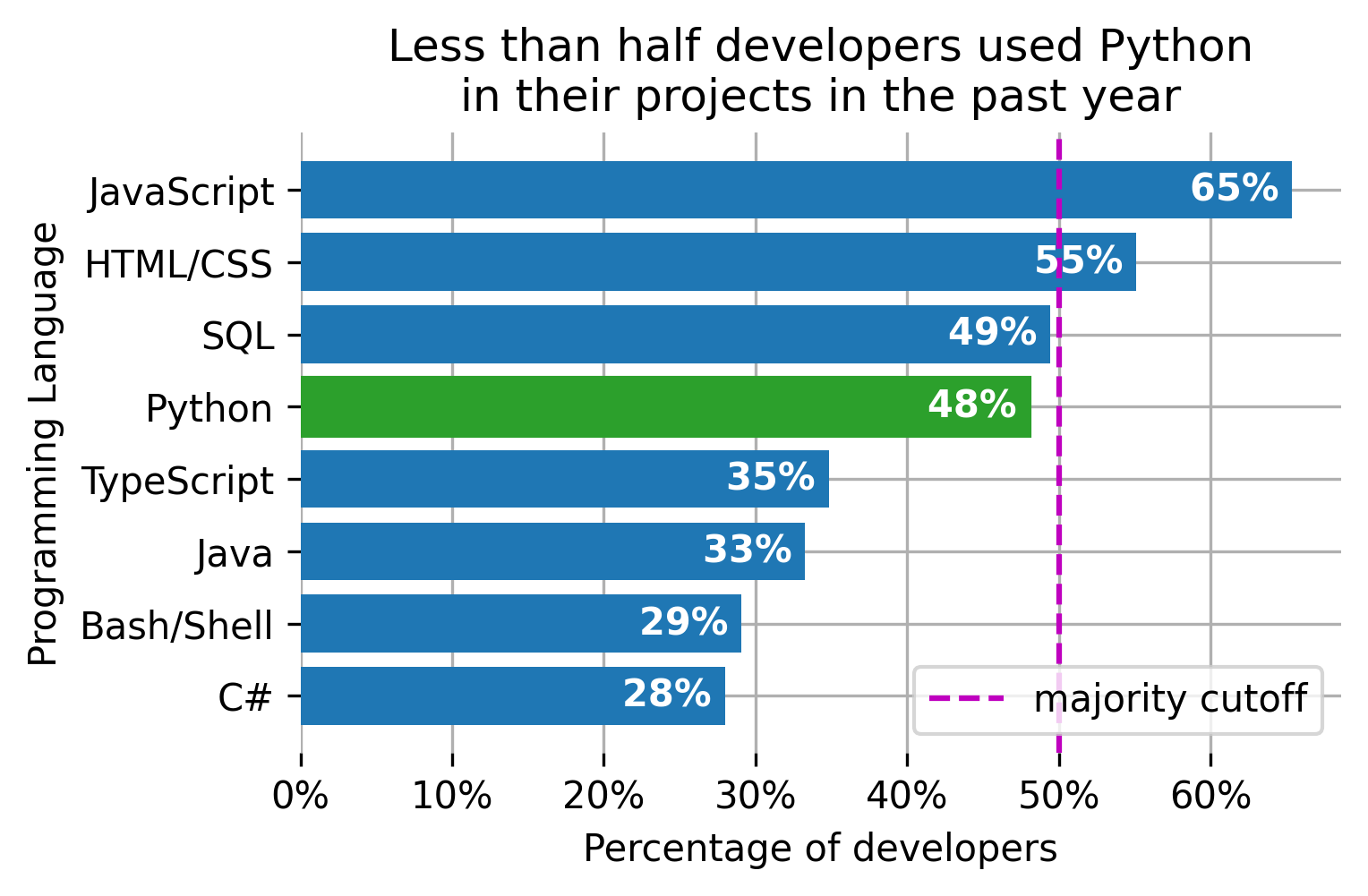
manipulations can also help in delivering the message. The horizontal
bar plot from my example can benefit from highlighting the bar of
interest, listing the bars in a descending order, and adding the values
numbers to the bars.
python_ix = programming_languages.index('Python')  # find the Python bar position
handle_bars[python_ix].set_color('C2')          # set the Python bar to a different color
ax.invert_yaxis()                                  # make bars display from top to bottom vs the default
for pos, val in enumerate(past_year_use):          # print values on the bars
    ax.text(val, pos, f'{val:.0f}% ',
            verticalalignment='center', horizontalalignment='right',
            color='white', fontweight='bold')
plt.box(False)                                     # turn off the box
# plot preparation
fig = plt.figure(figsize = (5,3))  # set the figure size (Width, Height)
ax = plt.gca()  # get the axis from the plot
# plotting
handle_bars = plt.barh(programming_languages, past_year_use)  # the plot
# fine tuning
plt.title('Less than half developers used Python\n'
          'in their projects in the past year')
plt.xlabel('Percentage of developers')
plt.ylabel('Programming Language')

plt.grid()              # show the grid
ax.set_axisbelow(True)  # set grid lines to the background

add_percentage = lambda value, tick_number: f"{value:.0f}%"       # function that adds % to tick value
ax.xaxis.set_major_formatter(plt.FuncFormatter(add_percentage))   # apply the tick modifier to x axis

handle_vline = plt.axvline(50, color='m', ls='--')  # 50% cutoff vertical line (axhline for horizontal)
plt.legend([handle_vline],                          # layers handles
           ['majority cutoff'],                     # layers names
           loc='lower right')                       # legend position

# plot specific modifications
python_ix = programming_languages.index('Python')  # find the Python bar position
handle_bars[python_ix].set_color('C2')             # set the Python bar to a different color
ax.invert_yaxis()                                  # make bars display from top to bottom vs the default
# print values on the bars
for pos, val in enumerate(past_year_use):
    ax.text(val, pos, f'{val:.0f}% ',
            verticalalignment='center', horizontalalignment='right',
            color='white', fontweight='bold')
plt.box(False)                                     # turn off the box

plt.savefig('pics/demo_bar_plot.png', bbox_inches='tight', dpi=300)
plt.show()
Lather, Rinse, Repeat
The plot manipulations code above might seem custom. In reality, most
of the commands stay the same from one graph to another while the
functions' parameters change based on the data at hand. I will use the
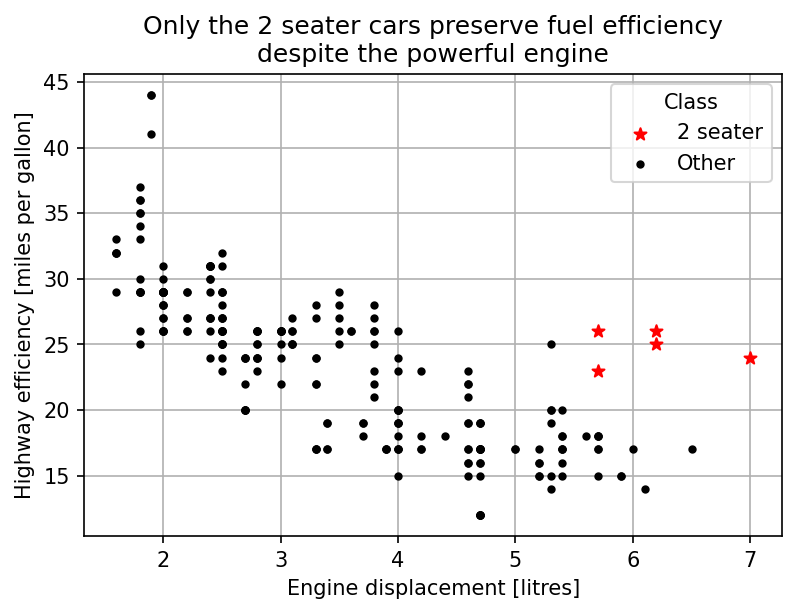
earlier mpg example to demonstrate this effect. The
resulting plot looks as follows:
Despite a different
plot type the fine tuning code was almost the same. The code for
vertical lines and tick modifiers did not offer additional clarity and
was removed along with the bar plot specific part. The only addition was
the title parameter for the legend. The resulting code is
shown below.
import pandas as pd
import matplotlib.pyplot as plt

df_mpg = pd.read_csv("https://vincentarelbundock.github.io/Rdatasets/csv/ggplot2/mpg.csv", index_col=0)
df_2seaters = df_mpg[df_mpg['class'] == '2seater']
df_other = df_mpg[df_mpg['class'] != '2seater']

# plot preparation
plt.figure(figsize = (6,4))  # set the figure size (Width, Height)
ax = plt.gca()
# plotting
handle_2seater = plt.scatter(df_2seaters['displ'], df_2seaters['hwy'], color='red', marker='*')
handle_other = plt.scatter(df_other['displ'], df_other['hwy'], color='black', marker='.')
# fine tuning
plt.title('Only the 2 seater cars preserve fuel efficiency\n'
          'despite the powerful engine')
plt.xlabel('Engine displacement [litres]')
plt.ylabel('Highway efficiency [miles per gallon]')
plt.grid(True)
ax.set_axisbelow(True)
plt.legend([handle_2seater, handle_other], ['2 seater', 'Other'], title='Class')
plt.savefig('pics/2seater.png', bbox_inches='tight', dpi=150)
plt.show()
Making plots faster to set up
The examples above demonstrated that some standard commands are
frequently used. Memorizing that code is not the biggest problem. The
main problem is that it takes a long time to put together the same lines
with slight changes for each plot. I will propose several strategies for
reducing the amount of effort required to memorize and put together the
code.
Change the defaults
Default plot settings can be changed in one place and propagated to
all the downstream figures in a jupyter notebook. For example, the
default grid behavior and the default figure size can be changed in the
following way:
plt.rcParams['figure.figsize'] = [5, 3]
plt.rcParams['axes.axisbelow'] = True
plt.rcParams['axes.grid'] = True
The full list of the settings, options, and the defaults can be found
here.
Rewriting the global defaults saves the coding time for the commands
that stay the same despite the context. However, the approach still
requires looking up the rcParams settings, adding these
settings to each new notebook, and typing content specific commands. The
next approach will take care of the content specific commands.
Copy and paste
This approach will take care of content specific commands. Just save
the template somewhere and copy it every time to finish the plot.
Content specific parts are easy to modify without memorizing all the
necessary commands. The template below works well for the majority of my
cases:
# plot preparation
plt.figure(figsize = (5,3))  # set the figure size (Width, Height)
ax = plt.gca()
# plotting

# fine tuning
plt.title('Title')
plt.xlabel('x')
plt.ylabel('y')
plt.grid(True)
ax.set_axisbelow(True)
ax.xaxis.set_major_formatter(plt.FuncFormatter(lambda value, tick_number: f"{value}" ))
handle_vline = plt.axvline(50, color='r')
plt.legend([handle_vline], ['reference'], loc='best')
plt.savefig('pics/file_name.png', bbox_inches='tight', dpi=150)
plt.show()
The template can be modified you use other commands quite a lot. The
major inconvenience with this approach is that you have to carry the
template around in a separate file and pull the code from that file
every time it is needed. Not the end of the world, but annoying.
Share the template across jupyter notebooks with magics
The %macro magic captures a piece of code for future
retrieval or execution. Just name the pattern and point the magic to the
jyputer cell that holds the template code. Say, the template code is in
cell 10 and I picked the name fine_tune for
it. The following command will associate the code with the name:
%macro -q -r fine_tune 10
By using the following command, the code can be retrieved
anywhere:
%load fine_tune
The next step is to make the template available for other notebooks.
The %store magic does the job. Its primary use is to share
the variables between the notebooks. fine_tune is one of
such variables. The following line stores template macro variable
internally:
%store fine_tune
The following command makes the template available in the notebook
where it is needed:
%store -r fine_tune
After that use %load fine_tune when you want to put the
plot together.
# # plot preparation
# plt.figure(figsize = (5,3))  # set the figure size (Width, Height)
# ax = plt.gca()
# # plotting

# # fine tuning
# plt.title('Title')
# plt.xlabel('x')
# plt.ylabel('y')
# plt.grid()
# ax.set_axisbelow(True)
# ax.xaxis.set_major_formatter(plt.FuncFormatter(lambda value, tick_number: f"{value}" ))
# handle_vline = plt.axvline(50, color='r')
# plt.legend([handle_vline], ['reference'], loc='best')
# plt.savefig('pics/file_name.png', bbox_inches='tight', dpi=150)
# plt.show()
%macro -q -r fine_tune 10
%store fine_tune
# retrieve in the new notebook if planning to use
%store -r fine_tune
import os.path

new_template_names = ['fine_tune']

# config folder path
ipython = !ipython locate
file_name = f'{ipython[0]}/profile_default/ipython_config.py'
# search patterns for commented and uncommented lines
exec_line_default = '# c.InteractiveShellApp.exec_lines = []\n'
exec_line = 'c.InteractiveShellApp.exec_lines = [\n'

# create the config files if not there
if not os.path.isfile(file_name):
    !ipython profile create

# read the config file
with open(file_name) as f:
    lines = f.readlines()

# uncommenting the part with line execution if commented
if exec_line_default in lines:
    # find the commented line
    setting_position = lines.index(exec_line_default)
    # replace with uncommented
    lines[setting_position] = exec_line
    # add the closing bracket
    lines.insert(setting_position+1, ']\n')

insert_position = lines.index(exec_line) if exec_line in lines else -1

# add the template loading lines
for template_name in new_template_names:
    # shape the storage request line
    new_line = f"    '%store -r {template_name}',\n"
    # add the line if not already there
    if not new_line in lines:
        insert_position += 1
        lines.insert(insert_position, new_line)

# write the updated config file
with open(file_name, mode='w') as f:
    f.writelines(lines)
Conclusion
Putting together a visualization that speaks for itself at a
stakeholder meeting is laborious. The number and variety of context
dependent commands that go with such graph makes the process hard to
automate and embed in a single plotting function. Memorizing the
commands is tedious. Typing these commands over and over for each new
visualization is time consuming.
In this post I showed how to use code templates to save time and
effort while finalizing the plot. Such template contains a set of most
used commands with placeholders for the context dependent parts. I also
showed how to load the template code fast using a jupyter magic.